How to Create a Carousel Post on LinkedIn in 2026
Wilmer KarlssonTarstad
Last Updated: September 12, 2026
Key Takeaways
- LinkedIn carousels generate 585% more engagement than text posts and 300% more than video
- Create carousels by designing 6-10 slides in Canva, then uploading as a multi-page PDF document
- Use square (1080x1080) or portrait (1080x1350) dimensions optimized for mobile viewing
- Structure slides with strong hook, one idea per slide, and clear call-to-action on final slide
- Personal profiles see 63% higher carousel engagement than company pages
What Is a LinkedIn Carousel Post and Why It Matters
LinkedIn carousel posts aren't what you might think. They're not native image carousels that stack side-by-side. Instead, they're multi-page PDF documents that users swipe through, one slide at a time, directly within their feed. This format has quietly become the highest-performing content type on the platform, and if you're not using it, you're leaving serious engagement on the table.
Here's why this matters right now: LinkedIn carousels have the highest average engagement rate of 6.60%, surpassing all other content forms. That's not a marginal difference. That's carousels outperforming video, text posts, and single images by a significant margin. Meanwhile, LinkedIn's engagement is surging by 30% year-over-year, making it one of the most active platforms for B2B professionals right now.

The algorithm loves carousels because they create friction in the best way. Each swipe signals genuine engagement, telling LinkedIn's algorithm that your content is compelling enough to hold attention across multiple pages. This repeated interaction boosts your reach exponentially compared to single-slide posts. For B2B creators, carousels let you tell a story or explain a series of steps across multiple slides, transforming complex ideas into digestible, scannable content that professionals actually consume during their morning coffee.
The opportunity is now. Platform engagement is accelerating, but most creators still aren't leveraging carousels effectively. You're about to change that.
Why Carousel Posts Outperform Every Other LinkedIn Format
The numbers tell a clear story: document carousels generate 278% more engagement than video posts, 303% more than image posts, and 596% more than text-only posts. This isn't marginal improvement. This is the difference between content that resonates and content that disappears into the feed noise.
Here's why carousels dominate. Each swipe extends dwell time on your post, sending a powerful signal to LinkedIn's algorithm that your content deserves wider distribution. A single image gives you one moment to capture attention; a carousel gives you five, ten, or fifteen chances across multiple slides. That's fifteen opportunities to hook someone before they scroll past.
The platform rewards this behavior. Personal profile carousels see 63% higher engagement than company page carousels, while top-performing B2B company pages post significantly more carousel content than median performers. This isn't random. The best-performing pages have systematized carousel creation because they've seen the results firsthand.
The psychology reinforces the mechanics. Carousels create a micro-habit loop: users swipe to see what's next, which deepens engagement and strengthens memory recall. You're not just broadcasting information; you're creating an interactive experience that feels more like conversation than content consumption.
If you're serious about B2B growth on LinkedIn, carousels aren't optional. They're the format that consistently outperforms everything else. The data demands it, and your engagement metrics will prove it.
The Current Method: How LinkedIn Carousels Work in 2026
Here's what you need to know: LinkedIn carousels aren't what they used to be. In late 2023, LinkedIn discontinued its native multi-image carousel feature, forcing a complete shift in how creators build these posts. If you're looking for a carousel button in your posting interface, you won't find it. That's because the feature no longer exists as a standalone option.
The current method is straightforward but different. You upload a multi-page PDF, PowerPoint (PPTX), or Word document (DOCX) as a document post. LinkedIn no longer supports multi-image carousels for organic posts; the only way forward is uploading multi-page files. Once you upload, LinkedIn automatically transforms each page into a swipeable slide. Navigation arrows appear on the feed, and your audience can click through just like a traditional carousel. The preview loads in 10-30 seconds, giving you a chance to verify everything looks right before you publish.
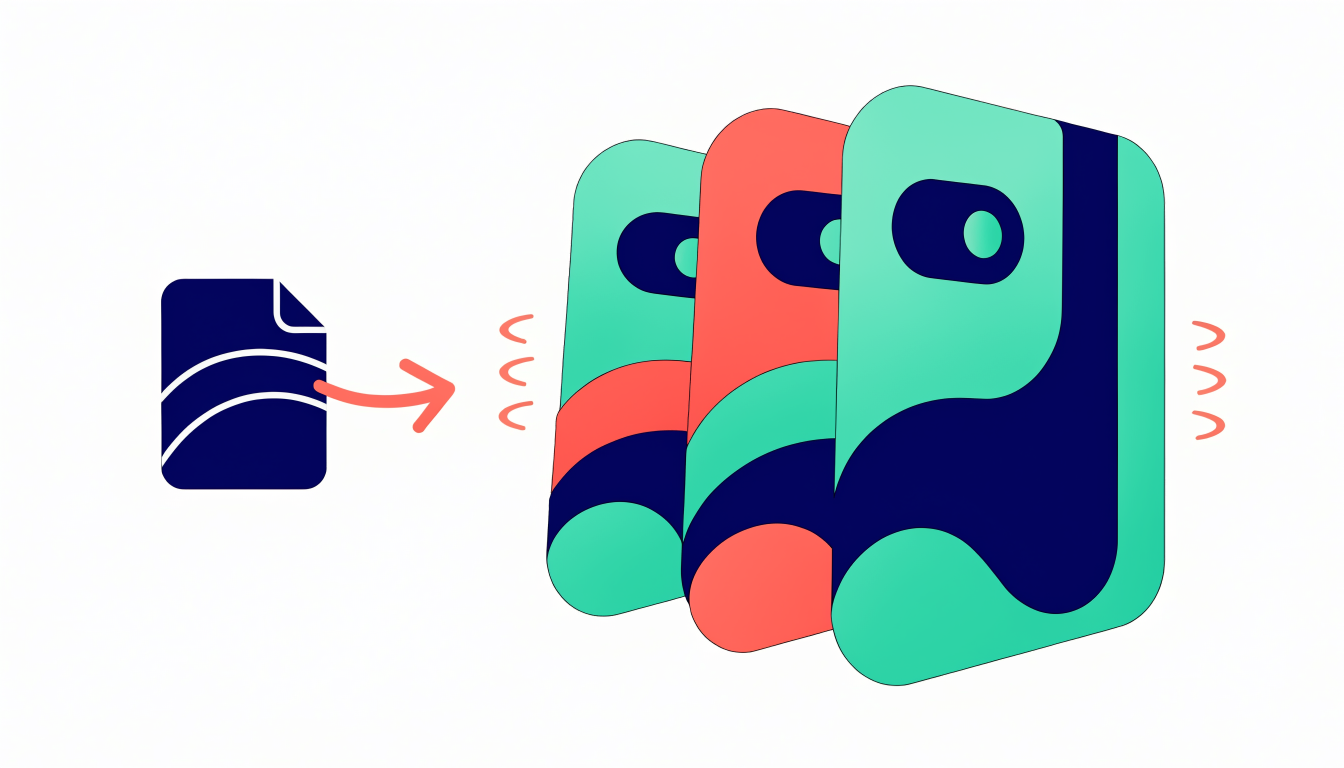
This format change confused many creators initially, but it's actually more powerful for B2B content. Documents feel more authoritative than image sequences, and LinkedIn's algorithm treats them favorably. The process is intentionally simple: select your file, add your caption, and post. No special formatting required, no carousel-specific settings to navigate. The platform handles the rest automatically, rendering your content as an interactive, swipeable experience that keeps viewers engaged longer than static posts.
Step-by-Step: How to Create Your First LinkedIn Carousel
Ready to stop talking about carousel posts and actually build one? Here's exactly what to do.
Start by planning your content. Decide what type of carousel serves your goal: educational (teaching a skill or framework), opinion-based (your take on industry trends), or step-by-step (a process broken into digestible pieces). Outline 6 to 10 key points you want to hit. This prevents you from rambling across slides and keeps your message tight.
Next, pick your design tool. Canva's free plan works perfectly for carousel creation; no paid subscription needed. If you prefer more control, Figma and Adobe are reliable alternatives. PowerPoint also functions in a pinch, though it exports less cleanly. The tool matters less than consistency; pick one and stick with it.
Use the right dimensions. Square (1080x1080) or portrait (1080x1350) dimensions maximize mobile visibility, which is where most LinkedIn users scroll. Portrait especially performs well because it fills more screen real estate without requiring horizontal scrolling.
Design your slides with one idea per slide. Make slide one a hook; it determines whether people swipe. Your final slide must include a clear call-to-action (CTA): ask for comments, direct people to your website, or invite them to connect. The middle slides carry your value.
Export as PDF. Download your carousel as a PDF Standard file from Canva or your design tool. This is non-negotiable; LinkedIn carousels only work with PDFs.
Upload to LinkedIn. Click "Start a Post," then select "Add a Document." Choose your PDF file; LinkedIn processes it within 10 to 30 seconds. Add a compelling title (this appears below the carousel in the feed) and a caption that hooks people before they swipe. Review the preview to ensure everything looks right. Hit Post.
That's it. You've just created a carousel.
Design Best Practices That Drive Engagement and Saves
Your carousel's visual design either compels people to swipe or sends them scrolling past. Here's what actually works.
Start with a hook that stops the scroll. Your first slide carries all the weight. Use a bold headline, striking contrast, or a provocative question that makes someone pause. This isn't the place for subtlety; the first slide must stop the scroll. Think "5 Mistakes Killing Your Lead Gen" or "Why Your Best People Leave" rather than "Q3 Insights." Curiosity is your currency.
Keep one clear idea per slide. This is non-negotiable. Keep one idea per slide for better completion, because cognitive overload kills engagement. One concept, one visual, one takeaway. Cramming three ideas onto a single slide dilutes impact and frustrates mobile viewers who are already squinting at their phones.
Nail your visual consistency. Use the same fonts, color palette, and spacing throughout. Inconsistent design feels amateur and breaks the reading flow. Pick two fonts maximum, stick to your brand colors, and maintain equal margins. This consistency signals professionalism and keeps people engaged through the full deck.
Optimize ruthlessly for mobile. Since 80% of LinkedIn users view on mobile devices, readable fonts and generous spacing aren't optional. Use sans-serif typefaces at 24pt minimum for body text. Avoid thin lines and small graphics that disappear on small screens.
Aim for 6 to 10 slides. 6 to 10 slides delivers enough value to earn saves while holding attention through full deck. Shorter carousels maintain momentum; longer ones invite drop-off.
Name your frameworks. Named frameworks consistently drive saves because they become reusable mental models people want to reference later. "The 3-C Framework" or "RICE Method" outperforms generic slides every time.
End with a specific CTA. Don't just stop; direct action. End with a clear call-to-action that asks readers to comment, save, share, or visit your profile. This final push converts passive viewers into active participants, boosting your algorithm performance.
Optimizing Reach with Hashtags and Strategic Posting
Your hashtag strategy makes or breaks carousel visibility. Use 3-5 relevant hashtags to help LinkedIn's algorithm categorize your post and surface it to the right audience. The key is specificity; target niche hashtags that attract your actual buyer personas rather than generic industry terms that drown your content in noise. If you mention collaborators or experts within your carousel, tag them directly, but skip the temptation to randomly tag big names hoping for visibility. Authentic mentions drive engagement; obvious name-dropping doesn't.
Your caption sets expectations before anyone swipes. Lead with what readers will learn or gain by moving through your slides. This hook determines whether someone engages at all.
Timing matters significantly. Post when your audience is actually scrolling, typically Tuesday through Thursday between 8am and 10am in their timezone. Personal profile carousels see 63% higher engagement than company page carousels, so prioritize your personal brand if you're serious about reach.
Finally, design each slide to prompt action. The algorithm increasingly rewards content that generates meaningful engagement: saves, reposts, and comments. Ask questions, include surprising data, or end with a call-to-action that encourages saves. These signals tell LinkedIn your carousel deserves wider distribution.
Frequently Asked Questions About LinkedIn Carousels
Here's what holds most creators back from posting their first carousel: uncertainty. Let's clear it up.
Can I edit after posting? No. You cannot edit after publishing, so preview every slide carefully before hitting send. Check spelling, formatting, and flow. One typo across five slides looks worse than one typo in a single post. Take the extra two minutes.
What about scheduling? Yes, LinkedIn lets you schedule carousel posts natively. Upload your content as a multi-page PDF, PPTX, or DOCX file and use the native scheduler or third-party tools. PDF is most reliable for formatting consistency across devices.
How short should my caption be? Keep it to one or two sentences maximum. Your slides do the heavy lifting; the caption is just the hook. A rambling caption buries your message before anyone swipes.
Organic posts versus carousel ads? Organic carousels reach your existing network and those in their feeds. Ads target specific audiences by job title, industry, or company. For B2B growth, start organic to build credibility, then layer in paid to expand reach to decision-makers.
How do I measure success? LinkedIn Analytics shows you exactly what matters: saves, shares, comments, and profile visits. Track these metrics over time to understand what resonates with your audience. Carousels typically hold attention longer than single images, so expect stronger engagement if your content delivers value.
The real blocker isn't the tool. It's starting without a plan. Know your message, structure your slides, and hit publish.
Connect Carousel Strategy to Your LinkedIn Growth Goals
Carousels aren't just another content format; they're the format. Top-performing B2B pages prioritize carousel content significantly more than median performers, and for good reason. LinkedIn carousels consistently outperform every other post format in engagement metrics that actually matter: saves, shares, and meaningful comments.
Here's what separates carousel strategy from casual posting. First, consistency beats perfection. Your audience learns to expect and engage with your carousel style when you post regularly. This familiarity compounds over time, building a predictable growth engine rather than relying on viral luck.
Second, measure what matters. Track which carousel types generate profile visits, message requests, and qualified leads. Not all engagement is equal. A carousel that drives ten genuine conversations outweighs one with a hundred passive likes.
Third, repurpose aggressively. That blog post, framework, or case study already exists in your content vault. Transform it into carousel format and multiply its reach. This isn't lazy recycling; it's strategic distribution.
Fourth, mix formats intentionally. Carousels work best within a balanced content strategy that includes text posts, videos, and articles. Carousel dominance without variety actually reduces overall engagement.
Finally, scale production without sacrificing quality. Use design templates and automation tools to create more carousels faster. The goal isn't perfection on every slide; it's consistent, valuable content flowing to your audience week after week. That's how carousels become your growth multiplier.
Take Your LinkedIn Growth to the Next Level
LinkedIn carousels aren't a trend; they're a proven format that generates 300% more engagement than standard posts. The data backs it up, and your competitors are already capitalizing on this advantage. The technical process is straightforward once you understand the PDF method, so there's no legitimate reason to delay.
What separates consistent performers from the rest isn't luck or access to secret tools. It's discipline around three fundamentals: design consistency that makes your carousels instantly recognizable, strategic structure that guides readers through a logical narrative, and regular posting that keeps your content in front of your audience. Those three elements compound over time.
But here's the reality: knowing what to do and actually doing it are different things. You need a system that makes carousel creation sustainable, not just a one-off experiment. That's where measurement becomes critical. You can't optimize what you don't track. Understanding which slides drive clicks, which headlines stop the scroll, and which topics resonate with your specific audience transforms carousel posting from guesswork into strategy.
Start this week. Create one carousel using the PDF method outlined in this guide. Test it with your audience and pay attention to what works. Don't wait for perfect conditions or complete confidence; those come through iteration, not planning.
If you're managing multiple LinkedIn accounts or want to accelerate your carousel strategy with built-in analytics, platforms like GetViews.AI streamline both creation and performance measurement, letting you focus on what matters: building genuine connections with your B2B audience.
Your next carousel post could be the one that changes your trajectory. The only question is whether you'll actually create it.