HubSpot CRM LinkedIn Integration: Complete Setup Guide 2026
Last Updated: March 10, 2026 TL;DR: Key Takeaways on HubSpot LinkedIn Integration HubSpot-LinkedIn integration improves win rates by 17%, deal sizes by 42%, and...
Wilmer KarlssonTarstad
Last Updated: March 10, 2026
TL;DR: Key Takeaways on HubSpot LinkedIn Integration
- HubSpot-LinkedIn integration improves win rates by 17%, deal sizes by 42%, and pipeline by 15%
- Native integration syncs only new and updated data; use CRM Sync for complete contact and activity tracking
- Send InMails, view LinkedIn profiles, and log activities directly from HubSpot without platform switching
- LinkedIn generates 80% of B2B leads; integration increases sales by 29% and productivity by 34%
- Third-party tools enhance native integration for deeper conversation sync and advanced automation
Table of Contents
- Why HubSpot LinkedIn Integration Matters for B2B Sales in 2026
- Understanding HubSpot's Two LinkedIn Integration Options
- Step-by-Step Setup: Connecting HubSpot to LinkedIn Sales Navigator
- Maximizing LinkedIn Data with HubSpot CRM Sync and Advanced Features
- Enhancing Integration with Third-Party Tools and Best Practices
- Measuring Success and Troubleshooting Common Integration Issues
- FAQ: Common Questions About HubSpot LinkedIn Integration
- Key Takeaways: Your HubSpot LinkedIn Integration Action Plan
- Transform Your LinkedIn Sales Strategy with HubSpot Integration
Why HubSpot LinkedIn Integration Matters for B2B Sales in 2026
LinkedIn generates 80% of B2B leads from social media, yet most sales teams treat it as a separate silo from their CRM. That's leaving money on the table.
When you integrate HubSpot with LinkedIn properly, something shifts. Companies with integrated Sales Navigator and CRM systems see 17% higher win rates, 42% larger deal sizes, and a 15% boost in pipeline opportunities. You're not just syncing contacts anymore; you're building a unified sales record that captures conversations, engagement history, and relationship context all in one place.
The numbers justify the effort. LinkedIn CRM integration increases sales by 29% and boosts productivity by 34% compared to manual processes. Your reps spend less time copying names into spreadsheets and more time actually selling. Pipeline visibility improves. Deal cycles compress.
For B2B founders and sellers, this integration solves a real friction point: you're having meaningful conversations on LinkedIn, but that context disappears the moment you switch to HubSpot. You lose continuity. You repeat questions. You miss signals about intent and timing.
A complete integration captures everything. LinkedIn activity, Sales Navigator interactions, InMail conversations, profile views, engagement patterns. All flowing directly into HubSpot's contact records. Your entire team sees the full relationship history without jumping between platforms.
In 2026, this isn't optional for competitive B2B teams. It's foundational.
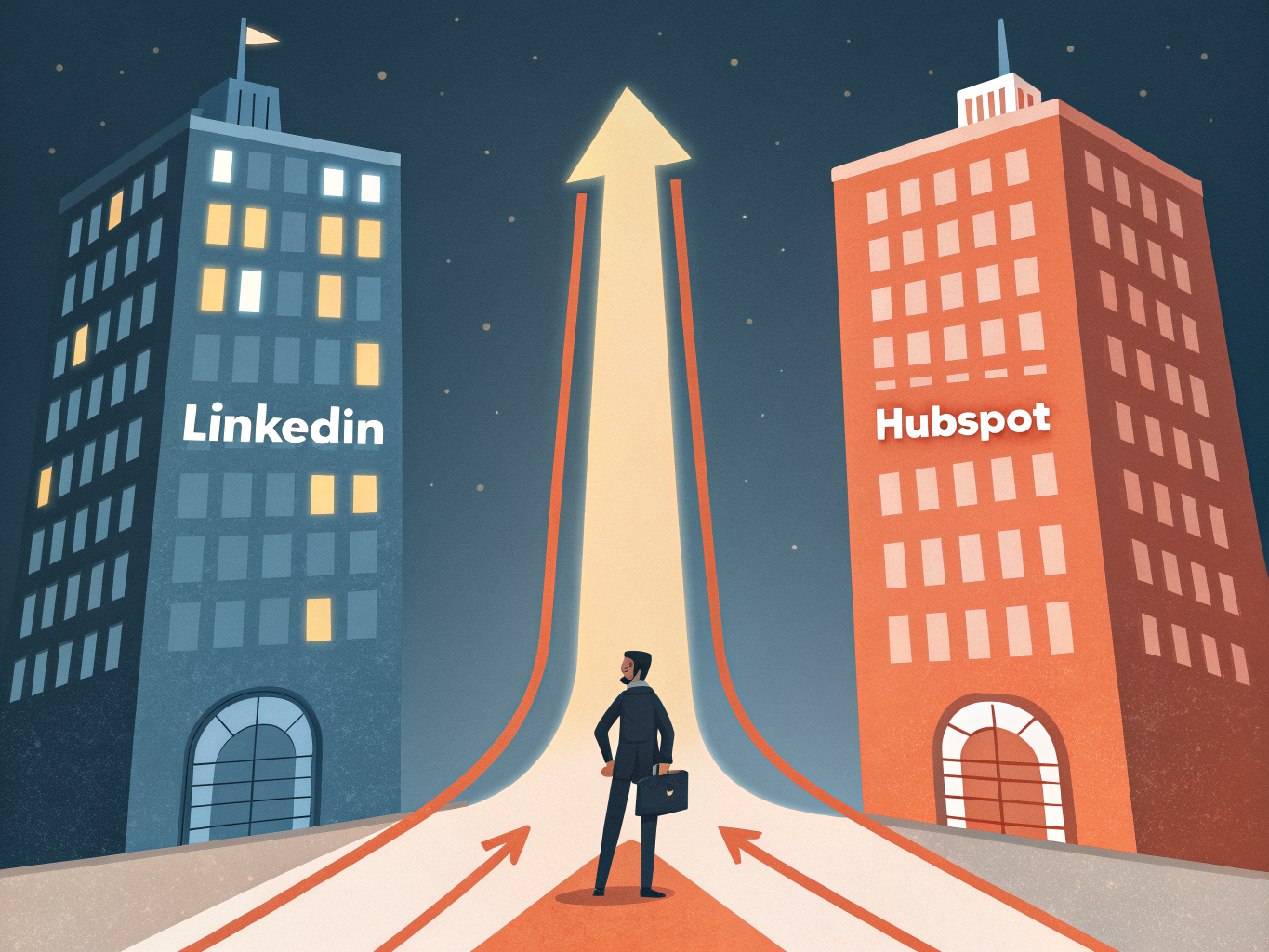
Understanding HubSpot's Two LinkedIn Integration Options
HubSpot offers two distinct LinkedIn integration pathways, and choosing the right one depends on your team's size, budget, and workflow needs.
Sales Navigator Integration brings LinkedIn directly into HubSpot. You'll see prospect profiles, mutual connections, and job changes without leaving your CRM. HubSpot's integration with LinkedIn Sales Navigator lets you view LinkedIn insights directly within HubSpot records and send InMails without leaving the platform. This works best for sales teams focused on individual prospecting. However, it requires a Sales Hub Professional or Enterprise seat plus a Sales Navigator Advanced or Advanced Plus subscription per user, making it pricier for larger teams.
CRM Sync goes deeper. It creates a two-way data bridge that automatically syncs contacts, companies, deals, and account owners between HubSpot and LinkedIn Sales Navigator. This approach scales better across teams because you're syncing data intelligently rather than manually managing individual profiles.
Here's the critical difference: Only new and updated data will sync between HubSpot and Sales Navigator after the sync is turned on. Your historical data won't automatically populate unless you reinstall the app. This matters if you're migrating from another system.
One important limitation: You can only connect one HubSpot account with one Sales Navigator environment at a time, so multi-workspace setups require careful planning.
Which should you choose? Use Sales Navigator Integration if your reps need quick LinkedIn context during prospecting. Choose CRM Sync if you want automated, scalable data flow that reduces manual data entry and keeps your entire team aligned. Many successful B2B operations use both, leveraging Sales Navigator for individual outreach while CRM Sync handles systematic contact and company updates.
Step-by-Step Setup: Connecting HubSpot to LinkedIn Sales Navigator
Getting HubSpot and LinkedIn Sales Navigator connected is straightforward, but the setup process matters. Here's exactly what you need to do.
Prerequisites
Before you start, confirm you have a HubSpot account with proper admin access and an active LinkedIn Sales Navigator subscription. You'll also need to be logged into both platforms during setup. Without Sales Navigator specifically (not just a standard LinkedIn account), the integration won't function.
The Installation Process
- Log into your HubSpot account and navigate to the App Marketplace from your main menu.
- Search for "LinkedIn Sales Navigator" in the marketplace search bar.
- Select the official LinkedIn Sales Navigator app and click "Install app."
- You'll be redirected to authenticate with your LinkedIn account. Use your Sales Navigator credentials here.
- HubSpot uses an OAuth authentication process that gives the app controlled access to your lead data without storing your password directly. Approve the permissions request when prompted.
- Once authentication completes, return to HubSpot. The integration is now active.
What Appears After Connection
After successful integration, a LinkedIn profile card automatically displays in your contact and company records. In your HubSpot account, navigate to CRM and click the name of a record to locate the LinkedIn Sales Navigator card in the right panel. This card pulls real-time data including job title, current company, time in role, location, and industry information.
Important Note for Existing Users
If you installed HubSpot before October 7, 2025, you may need to manually add the integration card to your existing records. New records created after that date include it automatically. To add it manually, simply open any contact record, click the "+" icon in the right panel, and select the LinkedIn Sales Navigator card from available options.
The entire process typically takes five minutes. Once live, your team can start leveraging LinkedIn insights directly within HubSpot without switching between platforms, significantly improving research efficiency for your sales outreach.
Maximizing LinkedIn Data with HubSpot CRM Sync and Advanced Features
The real power of HubSpot CRM LinkedIn integration emerges when you move beyond importing contact names and email addresses. This is where activity writeback transforms your sales process.
Every interaction matters. When your team sends an InMail, messages a prospect, or accepts a connection request through LinkedIn Sales Navigator, that activity automatically logs directly onto the contact timeline in HubSpot. You're no longer juggling multiple platforms or relying on memory to track where conversations stand. Your entire team sees the full picture: what was said, when, and what happened next. This single source of truth eliminates duplicated outreach and keeps deals moving forward.
But activity logging is just the foundation. Smart Lists in HubSpot let you segment contacts by criteria that matter: recent job changes, mutual connections, engagement patterns. Export those lists directly to LinkedIn Sales Navigator and run hyper-targeted campaigns with messaging that resonates because it's informed by real context.
LinkedIn data enriches your lead scoring too. Job transitions, new connections, and profile engagement become signals that trigger automated workflows. When someone changes roles at a target company, HubSpot can automatically queue a personalized follow-up email or alert your sales rep to reach out.
The two-way sync means updates flow both directions. Changes you make in HubSpot reflect in Sales Navigator, ensuring your outreach stays coordinated across channels. LinkedIn generates 80% of B2B leads and integrating with CRM can increase sales by 29% and boost productivity by 34%.
This isn't just about capturing data. It's about building workflows that anticipate buyer behavior and respond in real time.
Enhancing Integration with Third-Party Tools and Best Practices
While HubSpot's native LinkedIn integration handles the basics, it has real gaps. Native syncing can lag, message conversations don't always transfer cleanly, and you're limited without a Sales Navigator subscription. That's where third-party tools come in.
Surfe, AddtoCRM, and similar tools cost between $10-79 per user monthly and solve specific problems the native integration doesn't. Surfe captures LinkedIn messages directly into HubSpot, enriches contact data automatically, and works across multiple CRM platforms. If your team doesn't have Sales Navigator, Hublead is worth considering; it updates contacts in real-time without requiring that subscription, whereas native syncing sometimes lags by hours.
Zapier bridges the gap for custom workflows. Use it to trigger HubSpot tasks when you receive LinkedIn messages, log LinkedIn profile views as activities, or automatically tag contacts based on engagement. This automation saves time and prevents manual data entry errors.
Three practices matter most. First, audit your data regularly. Set a monthly cadence to spot duplicates or mismatched fields between platforms; small inconsistencies compound quickly. Second, lock down permissions. Admin controls determine which team members can export leads from LinkedIn or log InMails into HubSpot. Not every rep needs full export access. Third, document your workflow. When you combine native integration with third-party tools, your team needs clarity on which tool handles which task.
The right combination depends on your team size and workflow complexity. Start with native integration, identify the friction points, then add tools strategically rather than tooling up all at once.
Measuring Success and Troubleshooting Common Integration Issues
The real test of your HubSpot-LinkedIn integration isn't setup; it's what happens after. Track these metrics before and after activation: win rates, average deal size, pipeline opportunities created, and sales cycle length. Companies with integrated Sales Navigator and CRM systems see 17% higher win rates, 42% larger deal sizes, and 15% boosts in pipeline opportunities. If your numbers aren't moving, investigate further rather than assume the integration works.
Data synchronization issues are your biggest enemy. Check weekly that contact counts match between platforms and that updated LinkedIn information actually flows into HubSpot. Duplicate contacts happen when HubSpot fails to recognize the same person from different sources. This tanks your data quality and confuses your sales team.
Most sync problems resolve with a clean reset. Uninstall and reinstall the app to sync all records regardless of update status. This forces HubSpot to re-evaluate your entire LinkedIn database without assuming what's already synced.
Sync delays typically stem from outdated app versions. Keep both your HubSpot and LinkedIn Sales Navigator accounts current; new compatibility fixes roll out regularly. Enable AI-powered lead scoring within HubSpot to boost lead-to-opportunity conversion rates. Research shows this can increase conversions by up to 50%.
Document what you're testing. Note when you made changes, what metrics shifted, and why. This prevents you from troubleshooting the same problems twice and builds institutional knowledge your team can reference.
FAQ: Common Questions About HubSpot LinkedIn Integration
Q: Do I need Sales Navigator to use HubSpot LinkedIn integration?
Yes. HubSpot's native integration requires Sales Navigator Advanced or Advanced Plus subscription. If you're running a lean sales team, this is a real cost consideration. However, the ROI typically justifies it when you're systematically working LinkedIn as a pipeline source.
Q: Can I sync LinkedIn messages to HubSpot?
Partially. The native integration logs InMails directly to contact timelines, which is valuable for tracking formal outreach. However, if you want all LinkedIn messages (including connection requests and regular DMs) synced automatically, you'll need third-party tools. This matters if your team relies heavily on LinkedIn messaging as part of your outreach sequence.
Q: What data actually syncs between the two platforms?
Contact information, company details, job changes, InMails, connection requests, and activity history all transfer. You get a complete picture of how prospects engage with your outreach without manual data entry.
Q: How often does data sync?
After your initial setup, only new and updated data syncs automatically. Sync frequency depends on platform updates from LinkedIn and HubSpot, typically within hours of activity.
Q: Can one LinkedIn Sales Navigator account connect to multiple HubSpot accounts?
No. Only one HubSpot account can connect to one Sales Navigator environment at a time. If you're managing multiple brands or divisions, plan your account structure accordingly.
Q: What if I end up with duplicate contacts?
Use HubSpot's built-in deduplication tools and establish consistent data entry practices early. Duplicates create reporting headaches and waste time on follow-ups. Clean data from day one saves significant friction later.
Key Takeaways: Your HubSpot LinkedIn Integration Action Plan
You've now seen how to connect HubSpot and LinkedIn, sync conversations, and build workflows that actually move deals forward. Here's what matters most: start with an honest audit of your current setup. Are you using Sales Navigator Integration, CRM Sync, or both? Know your baseline before you optimize.
Your immediate action plan:
Week 1: Enable CRM Sync writeback so every LinkedIn activity (messages, profile views, InMail responses) automatically logs on contact records. This alone eliminates manual data entry and keeps your pipeline accurate.
Week 2: Build Smart Lists targeting your ideal customer profile. Export these segments to LinkedIn for precision outbound campaigns. Companies with integrated Sales Navigator and CRM systems see 17% higher win rates, 42% larger deal sizes, and 15% boost in pipeline opportunities.
Week 3: Configure admin permissions so your sales team has appropriate access without creating security gaps or data chaos.
Ongoing: Track win rates, deal size, sales cycle length, and lead conversion rates monthly. These metrics reveal whether your integration is actually generating revenue or just creating busywork.
If you hit limitations with native features, explore third-party tools for advanced message syncing or multi-account management. The goal isn't perfection; it's building a system your team will actually use. Start small, measure results, scale what works.
Transform Your LinkedIn Sales Strategy with HubSpot Integration
You've now seen how a properly configured HubSpot-LinkedIn integration transforms sales from scattered, manual chaos into a coordinated system that actually works. The numbers speak for themselves: LinkedIn generates 80% of B2B leads from social media, and integrating it with your CRM can increase sales by 29% and boost productivity by 34%.
But here's what matters more than statistics: your team stops wasting time copying contact names into spreadsheets. Deal timelines compress. Conversations stay attached to records instead of disappearing into email threads. Your reps actually know what was discussed during that LinkedIn message exchange.

Start with native Sales Navigator sync today. If you're not running CRM Sync yet, audit your current setup this week. Add third-party tools as your workflow demands grow. The setup effort pays back within your first quarter through faster cycles and better conversion rates.
Your competitive advantage isn't in having LinkedIn and HubSpot. It's in connecting them properly.