LinkedIn Zoho CRM Integration 2026: Quick Setup Guide
Last Updated: March 10, 2026 TL;DR: LinkedIn Zoho CRM Integration Quick Facts Manual LinkedIn-Zoho data entry costs $15,080+ annually per sales rep in lost prod...
Wilmer KarlssonTarstad
Last Updated: March 10, 2026
TL;DR: LinkedIn Zoho CRM Integration Quick Facts
- Manual LinkedIn-Zoho data entry costs $15,080+ annually per sales rep in lost productivity
- Chrome extensions like LinkZoho and LinkMatch enable one-click lead capture and sync
- Automation platforms (Zapier, Appy Pie) create no-code workflows in under 5 minutes
- Integration boosts conversion rates by 27% and speeds lead response by 34%
- Sales Navigator integration with Zoho saves each rep 15 minutes daily (Forrester data)
Table of Contents
- What Is LinkedIn Zoho CRM Integration and Why It Matters in 2026
- The Business Case: Productivity Gains and ROI of LinkedIn Zoho Integration
- Integration Methods: Chrome Extensions vs. Automation Platforms vs. Native Tools
- Step-by-Step Setup Guide: LinkZoho Chrome Extension Method
- Advanced Setup: Automation Workflows with Zapier and Appy Pie
- Best Practices: Data Quality, Security, and Team Adoption
- FAQ: Common Questions About LinkedIn Zoho CRM Integration
- Key Takeaways: Your Integration Action Plan
- Conclusion: Transform Your LinkedIn Prospecting with Zoho CRM Integration
What Is LinkedIn Zoho CRM Integration and Why It Matters in 2026
Here's your section:
LinkedIn Zoho CRM integration connects your LinkedIn prospecting workflow directly to your Zoho CRM database, automating lead capture and syncing contact data in real time. Instead of manually copying prospect information from LinkedIn into your CRM (or worse, forgetting to do it), the integration pulls LinkedIn profile data, activity history, and engagement signals straight into your system.
Why does this matter in 2026? B2B sales cycles are faster and more competitive than ever. Your team is losing deals not because of poor strategy, but because of friction in your workflow. Manual LinkedIn-to-Zoho processes cost sales teams approximately $15,080 annually per representative in wasted time and lost leads. That's not a small number when you're running a team of five or ten reps.
Here's the real problem: your sales reps find great prospects on LinkedIn but spend 10 to 15 minutes per day transferring that data into Zoho. Emails get missed. Phone numbers don't sync. Lead scores stay outdated. By the time the information is in your CRM, the prospect has already connected with a competitor.
This integration is essential for sales teams, recruiters, and business developers who rely on LinkedIn for prospecting. LinkedIn Sales Navigator integration with Zoho boosts productivity by 20%, meaning your reps close more deals in less time.
The question isn't whether you can afford to integrate LinkedIn and Zoho. It's whether you can afford not to.
The Business Case: Productivity Gains and ROI of LinkedIn Zoho Integration
Here's the reality: your sales team is hemorrhaging time on manual data entry. Sales teams spend 5.8+ hours weekly on manual data entry between LinkedIn and Zoho, which translates to roughly 300 hours per rep annually. That's time they're not selling.
But the financial impact goes deeper than recovered hours. Companies automating LinkedIn-to-CRM syncing see 34% faster lead response time and 27% higher conversion rates. Think about that: a prospect who gets contacted within minutes instead of hours is dramatically more likely to engage. Speed kills in sales, and integration delivers it.
The numbers compound quickly. Forrester research shows Sales Navigator saves each salesperson 15 minutes daily, with companies saving $2.4 million over three years. For a team of 10 reps, that's 50 minutes of reclaimed productivity every single day. Multiply that by 250 working days, and you're looking at over 200 hours of pure selling time recovered annually.
Beyond time savings, the conversion lift is substantial. CRM systems boost sales productivity by 34% and overall sales by 29%. When LinkedIn data flows seamlessly into Zoho, your reps close deals faster because they have complete context instantly: connection history, mutual connections, recent engagement, and past interactions all in one place.
The investment pays for itself. Even modest adoption across your sales organization generates measurable ROI within the first quarter. You're not just saving time; you're accelerating revenue.
Integration Methods: Chrome Extensions vs. Automation Platforms vs. Native Tools
When it comes to connecting LinkedIn and Zoho CRM, you have three distinct paths forward, each with real trade-offs worth understanding.
Native Zoho Tools: Limited But Built-In
Zoho's native LinkedIn integration through LeadChain handles LinkedIn Lead Ads only. Zoho's native LeadChain handles only LinkedIn Lead Ads but lacks profile data and Sales Navigator integration. This means no access to Sales Navigator data, profile enrichment, or manual lead capture from profiles. For many teams, this limitation is a dealbreaker.
Chrome Extensions: Speed Meets Simplicity
This is where most teams find practical value. Extensions like LinkZoho pull LinkedIn profile data directly into Zoho CRM with a single click. LinkZoho is a Chrome extension that pulls LinkedIn profile data directly into Zoho CRM with one click. You get instant profile capture, job change alerts, and company information without leaving LinkedIn. The tradeoff: limited automation and manual effort at scale.
These work best for smaller teams or sales reps who need quick captures without workflow complexity. Setup takes minutes, not hours.
Automation Platforms: Power for Custom Workflows
Zapier, Appy Pie, and similar platforms enable no-code automation between LinkedIn and Zoho CRM. Zapier enables no-code automation between LinkedIn and Zoho CRM with triggers and actions. You can trigger actions based on LinkedIn events: new connection, profile visit, or message received. This approach scales beautifully for enterprise teams needing sophisticated workflows.
The cost climbs with complexity, and setup requires more planning upfront.
The Right Choice Depends on Your Reality
Choose native tools only if Lead Ads cover your entire pipeline. Pick Chrome extensions for speed and simplicity with modest volume. Go with automation platforms if you're scaling outreach or need triggered workflows based on LinkedIn activity. Most successful teams actually combine approaches: extensions for manual captures, automation for repetitive tasks.
Step-by-Step Setup Guide: LinkZoho Chrome Extension Method
Getting LinkedIn contacts into Zoho CRM doesn't require technical expertise or hours of manual data entry. The LinkZoho Chrome extension handles this in minutes with a straightforward setup process.
Step 1: Download and Install the Extension
Head to the Chrome Web Store and search for "LinkZoho." Click "Add to Chrome" and confirm the installation. The extension icon will appear in your browser toolbar within seconds, ready to use.
Step 2: Create Your LinkZoho Account
Click the extension icon and select "Sign Up." Use your email address or connect through your existing Google account. Choose a strong password and verify your email address. This account becomes your hub for managing all LinkedIn-to-Zoho syncs.
Step 3: Authorize Zoho CRM Permissions
The extension will prompt you to connect your Zoho CRM account. Click "Authorize" and log in with your Zoho credentials. You'll see a permissions screen requesting access to your contacts and lead databases. Review these carefully, then grant access. This step ensures data flows directly into your correct Zoho workspace.
Step 4: Start Adding Contacts from LinkedIn
Visit any LinkedIn profile. Click the LinkZoho extension icon and select "Add to Zoho CRM." The extension automatically captures name, job title, company, and contact details with one click, according to AddToCRM documentation. Customize any fields before saving if needed.
Step 5: Verify Your Data Synced
Log into Zoho CRM and navigate to your Contacts section. Your newly added LinkedIn contacts should appear within seconds. Check that all information transferred correctly, especially email addresses and phone numbers.
Common Troubleshooting
If contacts aren't appearing, verify you've authorized Zoho permissions. Clear your browser cache if the extension acts sluggish. For duplicate prevention, check existing contacts before adding new ones. This streamlined process saves time and reduces data entry errors significantly.
Advanced Setup: Automation Workflows with Zapier and Appy Pie
Once you've got the basic LinkedIn-Zoho connection running, it's time to level up with automation that actually saves your team time. Zapier and Appy Pie let you build sophisticated workflows that react to LinkedIn activity in real time.
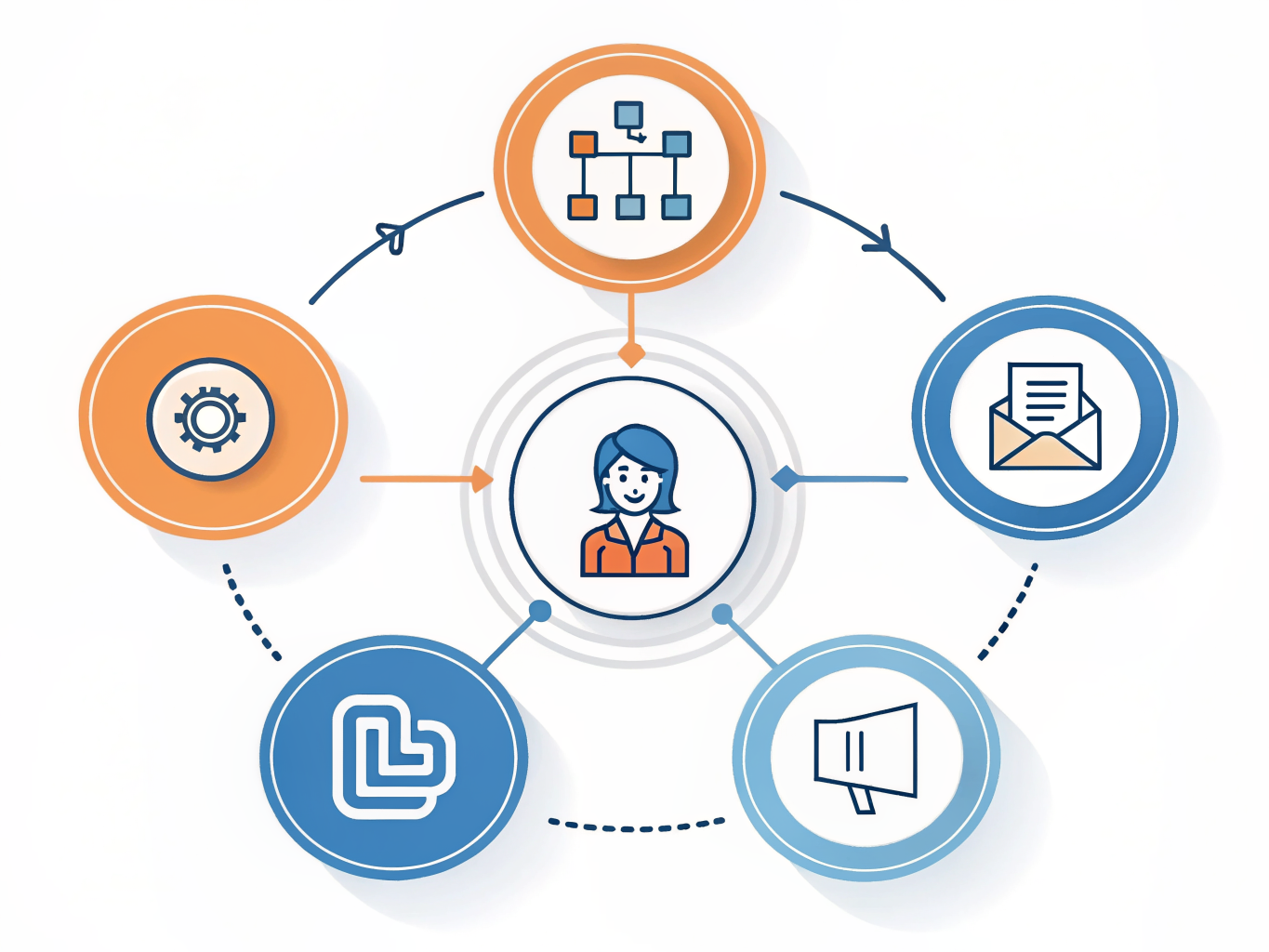
Here's how to start. Pick your trigger event: a new LinkedIn message, incoming connection request, or profile view. Then map it to a Zoho CRM action. For example, when someone messages you on LinkedIn, Zapier can automatically create a new lead in Zoho, assign it to the right sales rep, and even generate a follow-up task. Zapier can sync LinkedIn messages directly to Zoho CRM contact records, cutting out manual data entry entirely.
Real teams use this differently. A B2B sales group might trigger task creation whenever a hot prospect updates their LinkedIn profile, signaling buying intent. Another approach: when a connection request comes from someone in your target industry, automatically score them as a lead and notify your team. Profile updates in LinkedIn automatically reflect in Zoho CRM through automation, keeping your database current without lifting a finger.
The secret sauce is conditional logic. Don't just create every lead equally. Set rules: if the prospect works at a Fortune 500 company AND their title contains "director," assign high priority and add them to an urgent nurture sequence. Field mapping ensures LinkedIn data lands in the correct Zoho fields, preventing messy records.
Before going live, test your workflow with a small group. Send yourself a test message or connection request and watch it flow through. Catch errors now, not when you're losing real leads.
Companies automating LinkedIn-to-CRM syncing see 27% higher conversion rates, so the investment in setup pays off quickly.
Best Practices: Data Quality, Security, and Team Adoption
Getting your LinkedIn-Zoho CRM integration right means paying attention to three critical areas: how data flows in, who can access it, and whether your team actually uses it.
Start with clean field mapping. Your LinkedIn data won't automatically align with Zoho's fields. Map LinkedIn profile URLs to specific contact fields, headline information to job title fields, and company names consistently. LinkMatch customizes LinkedIn data mapping to specific Zoho CRM fields for accuracy, which prevents messy records down the line. Test your mapping with a small batch first, not your entire database.
Duplicate prevention is non-negotiable. LinkedIn profiles often create multiple entries for the same person across different campaigns or touchpoints. Use Zoho's built-in deduplication tools before syncing, and set rules to merge records based on email address or phone number. Link Port helps avoid duplicate entries and enriches profiles with extra information, which saves your team from manual cleanup work.

Security and compliance matter immediately. If you're handling EU contacts, GDPR compliance isn't optional. Ensure LinkedIn data syncs only with explicit consent, maintain audit logs in Zoho, and limit access to necessary team members. Review what personal data you're actually pulling over; less is often better.
Finally, adoption dies without training. Show your sales team exactly how the integration saves them time, not how it monitors them. Walk through real workflows: how a LinkedIn connection becomes a qualified lead in Zoho, how enriched data improves outreach. Schedule a 15-minute hands-on session rather than sending documentation. Monitor performance weekly for the first month, catch errors early, and adjust based on feedback.
FAQ: Common Questions About LinkedIn Zoho CRM Integration
Does Zoho CRM have native LinkedIn integration? Yes, but it's limited. Zoho's native LeadChain handles only LinkedIn Lead Ads. For full two-way syncing of contacts, messages, and activity data, you'll need a third-party tool like LeadCRM, LinkZoho, or LinkMatch.
Which integration method should my team use? It depends on your workflow. Use native LeadChain if you only run LinkedIn Lead Gen campaigns. Choose LeadCRM for comprehensive contact and message syncing. LinkMatch works best if you need AI-powered lead matching. Start with native integration; upgrade if you hit its limitations.
Is the integration secure and GDPR compliant? Absolutely. All data is encrypted and GDPR-compliant with data bridge models. Reputable integration tools use OAuth authentication, meaning LinkedIn never shares your password. Your data stays encrypted in transit and at rest.
What's the cost? Zoho's native integration is free. Third-party tools typically range from $29 to $199 monthly, depending on contact volume and features. Most offer free trials, so test before committing.
Can I sync historical LinkedIn messages? No. Integration typically captures new messages going forward. Historical data isn't accessible through official APIs, though some tools claim partial recovery through workarounds.
What if I change my mind? You can disconnect anytime. Existing synced data remains in Zoho, but new data won't flow once you disconnect. Just remove the app permissions from your LinkedIn settings.
The bottom line: Start with native integration, then layer on third-party tools as your team grows.
Key Takeaways: Your Integration Action Plan
Here's the reality: teams still manually copying LinkedIn contacts into Zoho are hemorrhaging thousands annually in wasted hours. That ends today.
Your integration roadmap depends on your team size. If you're small (under 10 people), grab a Chrome extension and activate it in under 10 minutes. You'll see immediate results: contacts syncing automatically, no data entry, no friction. It's the fastest path to productivity gains.
Running a larger operation? Invest time in automation platforms that build sophisticated workflows. These handle lead scoring, follow-up sequences, and data enrichment at scale. The setup takes longer, but the ROI compounds quickly across your entire pipeline.
Three non-negotiables for success:
First, audit your data quality before launch. Garbage in means garbage out. Second, get your team bought in. A perfect system fails if people bypass it. Third, start with a pilot program. Test with one department or sales rep before rolling out company-wide.
Don't overthink this. Choose your setup method, implement it this week, and measure results after 30 days. The integration itself is simple; the discipline to use it consistently is where winners separate from everyone else.
Your next move: pick your integration approach and schedule setup time tomorrow.
Conclusion: Transform Your LinkedIn Prospecting with Zoho CRM Integration

LinkedIn and Zoho CRM integration isn't a luxury anymore. It's the baseline expectation for B2B sales teams serious about hitting quota in 2026.
Here's the reality: teams ignoring this integration are burning time on manual data entry, losing leads to slow follow-ups, and watching competitors capture deals they should own. The cost of staying disconnected far outweighs any setup investment.
The good news? You have options. Whether you're bootstrapped and technical, or you have budget for premium solutions, there's a path forward. Zapier works for lean teams. Zoho's native integration handles mid-market needs. Custom APIs scale for enterprises. Pick the method matching your resources, and start this week.
Early movers aren't just staying organized; they're compressing sales cycles. They're responding to prospects within hours, not days. They're building data foundations that compound into competitive advantage.
You've got the roadmap. You know the setup steps. Now execute. Pick your integration method, allocate 2-3 hours this month, and watch your pipeline transform. Your 2026 sales targets depend on it.
Ready to amplify this strategy? Pair your CRM integration with LinkedIn engagement best practices to maximize your outreach impact.