How to Export Connections From LinkedIn The Right Way
Learn how to export connections from LinkedIn. Our guide covers LinkedIn's native tool, Sales Navigator, and third-party options for richer data.
Wilmer KarlssonTarstad
Thinking about how to export your LinkedIn connections usually starts with a simple question: "Why bother?"
It's a fair question. But the answer isn't just about downloading a spreadsheet. It’s about taking ownership of a professional asset you’ve spent years carefully building. Exporting your data is a strategic move, transforming your network from a passive list sitting on LinkedIn's servers into an active tool for growth.
Why Your LinkedIn Connections Are Worth Exporting
Your LinkedIn network is far more than a digital address book; it’s a living, breathing database of your professional relationships. Every single connection represents a potential client, a future partner, or a hidden opportunity. Leaving all that value locked away inside LinkedIn is like owning a gold mine but never actually digging for the gold.

When you finally learn how to export those connections, you gain a massive amount of control and flexibility. Suddenly, that static list becomes a dynamic asset you can plug into other business systems, putting your network to work for you.
Unlocking Strategic Advantages
Think about the real-world applications for a second. A sales team could import their exported connections directly into their CRM, instantly wiping out hours of mind-numbing manual data entry. This creates a single, unified view of their entire pipeline.
Or imagine launching a new product. Instead of guessing, you could build a hyper-targeted email list from your most relevant contacts in minutes. This simple export turns your network into a powerful engine for both marketing and sales.
And there’s another crucial reason: it's a backup. Accounts get suspended. People decide to leave the platform. Having a local copy of your connections ensures that years of networking effort are never, ever lost.
The Growing Trend of Data Ownership
You're not the only one catching on. As LinkedIn has exploded to over 1 billion members, professionals are getting much smarter about taking control of their data.
Back in 2020, about 12 million users requested their data archives from LinkedIn. Fast forward to today, and that number has skyrocketed to over 28 million annual requests—a 133% increase in just four years.
This isn't a small shift. It shows a fundamental change in how people view their professional networks: not just as something to have, but as a tangible asset to be used. You can see more on how people are using this data in this detailed analysis.
The core benefit of exporting your LinkedIn connections is transforming a passive network into an active, portable asset. It’s about moving from simply having connections to actively using them to drive your professional goals forward.
When you take control of this information, you can immediately:
- Integrate with CRMs: Seamlessly pull your contacts into systems like HubSpot or Salesforce.
- Build Targeted Lists: Create custom audiences for your email campaigns, event invitations, or newsletters.
- Safeguard Your Network: Protect your most valuable professional database from account loss or platform changes.
Once you grasp these benefits, the "how" of exporting becomes the obvious next step in getting real value from the brand you’ve built.
If you just want your connections list without messing with third-party tools, LinkedIn has a built-in export feature. It's the official, platform-approved way to get a copy of your network data. While it's not perfect (we'll get to that), it's the first place to start. The whole thing is tucked away in your privacy settings.
First, you’ve got to find the right page. Click on your profile picture in the top right corner and head into "Settings & Privacy."
Once you're in the settings dashboard, look for the "Data privacy" tab on the left-hand menu. Click that, and you'll see a bunch of options for how LinkedIn handles your data. You're looking for the one that says "Get a copy of your data."
Kicking Off Your Data Request
On the data download page, LinkedIn offers you two main choices. You can either grab a massive archive of everything you've ever done on the platform—posts, messages, the works—or you can pick and choose.
To get just your connections, you'll want the second option. Check the box for "Connections" and leave everything else unchecked.
Trust me, this is the way to go. Requesting the full archive can take ages and leaves you with a huge, messy folder of files you probably don't need right now. Sticking to just "Connections" is fast and simple.
You'll land on a screen that looks like this, where you can make your selection.
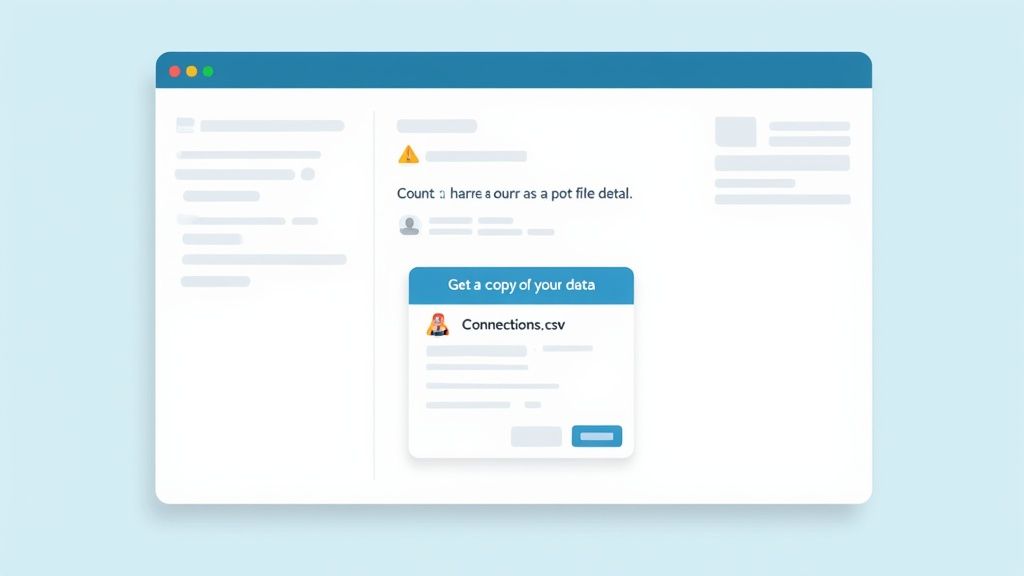
After you've ticked the "Connections" box, hit "Request archive," and LinkedIn will get to work.
What to Expect From the Download
Don't sit there hitting refresh—this isn't an instant process. Depending on how busy LinkedIn's servers are and the size of your network, it can take anywhere from a few minutes to a few hours. LinkedIn will email you when it's ready, but I've found it's usually quicker to just check back on that same download page periodically.
Your download actually comes in two parts. The first file is usually ready within 10 minutes or so. The second, more comprehensive file can take a couple of hours. The "Connections.csv" file you need is almost always in that first, quick download.
Once you have the file, you can open it up in Excel, Google Sheets, or any spreadsheet program. Inside, you'll find a few key columns of data:
- First Name: Your connection's first name.
- Last Name: Their last name.
- Company: The current company listed on their profile.
- Position: Their current job title.
- Connected On: The exact date you connected with them.
But here’s the big catch: email addresses are not included.
Years ago, LinkedIn changed its privacy policy and stopped including emails in this standard data export. It doesn't matter if your connection has their email publicly visible on their profile—it won't be in the file. This is easily the biggest limitation of the native export feature and the main reason so many people turn to other methods.
Advanced Export Methods for Sales Professionals
If you’re a sales pro rocking a premium tool like Sales Navigator or Recruiter, the standard data download just doesn't cut it. It feels... basic. While there isn't a secret "export all" button hidden in these platforms, they do open up powerful new ways to get data into your sales and recruiting systems—ways that go far beyond a simple CSV file.
This is less about a one-time data dump and more about building a live bridge between LinkedIn and the tools you use every day.
The Power of Native CRM Sync
The real magic is in the native CRM integrations. Instead of manually exporting and uploading a spreadsheet that's outdated the second you download it, you can connect Sales Navigator directly to platforms like Salesforce or HubSpot.
This isn't just about moving contact info around. This sync enriches your CRM records with a ton of valuable context.
Think about it. You can build a super-specific list in Sales Navigator—say, VPs of Marketing in the SaaS world who just started a new job in the last 90 days. Once you have that list, you can push it straight into a Salesforce campaign without ever touching a CSV.
The crucial shift here is moving from a static, quickly stale file to a dynamic, always-on data flow. The sync keeps your CRM updated with the latest info from a prospect's LinkedIn profile, making your outreach smarter and way more relevant.
This completely changes the game. Exporting connections is no longer a chore for backing up data; it becomes a core part of your strategic prospecting workflow. For a deeper look at turning these connections into actual revenue, check out our guide on building a million-dollar pipeline on LinkedIn.
What Data You Actually Get
The information you pull through a CRM sync is worlds better than what the standard export provides. The exact fields can differ depending on your CRM, but you can count on a much richer dataset.
Here's what you'll typically see:
- Profile URL: A direct link right to their LinkedIn profile. No more searching.
- Detailed Company Information: You get more than just the company name. Think industry, company size, and location, all synced over automatically.
- Activity Data: Some integrations even pull in shared connections, recent posts, and other engagement signals directly into your CRM.
This level of detail is what allows for true personalization. A BDR could see a prospect just commented on a post about AI in marketing and use that as the perfect, non-creepy opener. That's an insight you'll never find in the basic export, and it’s why these premium tools are so essential for any serious sales or talent team. It’s the closest you’ll get to an intelligent, automated export of your most important connections.
Getting Enriched Data with Third-Party Tools
When the standard export feels incomplete—especially with that glaring lack of email addresses—third-party tools are what you turn to next. These services are built to go far beyond what LinkedIn’s native feature offers, handing you a much richer, more actionable dataset.
So, how do they work? Most of these tools automate the process of visiting profiles and collecting publicly available information, a technique often called scraping. From there, they enrich this basic data by checking it against massive external databases to find and verify professional email addresses, phone numbers, and other critical details.
Why Automation Is a Game Changer
The biggest win here is sheer efficiency. Manually visiting hundreds or thousands of profiles to hunt down contact info isn't just tedious; it's a monumental waste of time that could be spent actually talking to people. Automation can shrink a week's worth of manual drudgery into a task you can run in minutes.
This isn't just a niche trend anymore. A recent study found that 68% of sales professionals now use some form of automated tool or API to get data from LinkedIn, a huge jump from just 32% five years ago. Companies using these methods reported a 45% increase in lead generation efficiency and a 30% reduction in manual data entry errors. You can dig into these findings on automation tools and LinkedIn data for more detail.
The data you get back is also far more complete. Instead of just a name and company, you receive a file that's ready to plug directly into your CRM or email marketing platform.
The real value of third-party tools isn't just about exporting connections; it's about exporting enriched connections. You're not just getting a list—you're getting a ready-to-use prospecting database.
This decision tree gives you a good sense of the thought process when deciding on an export method, whether you're weighing a premium account against a dedicated third-party service.
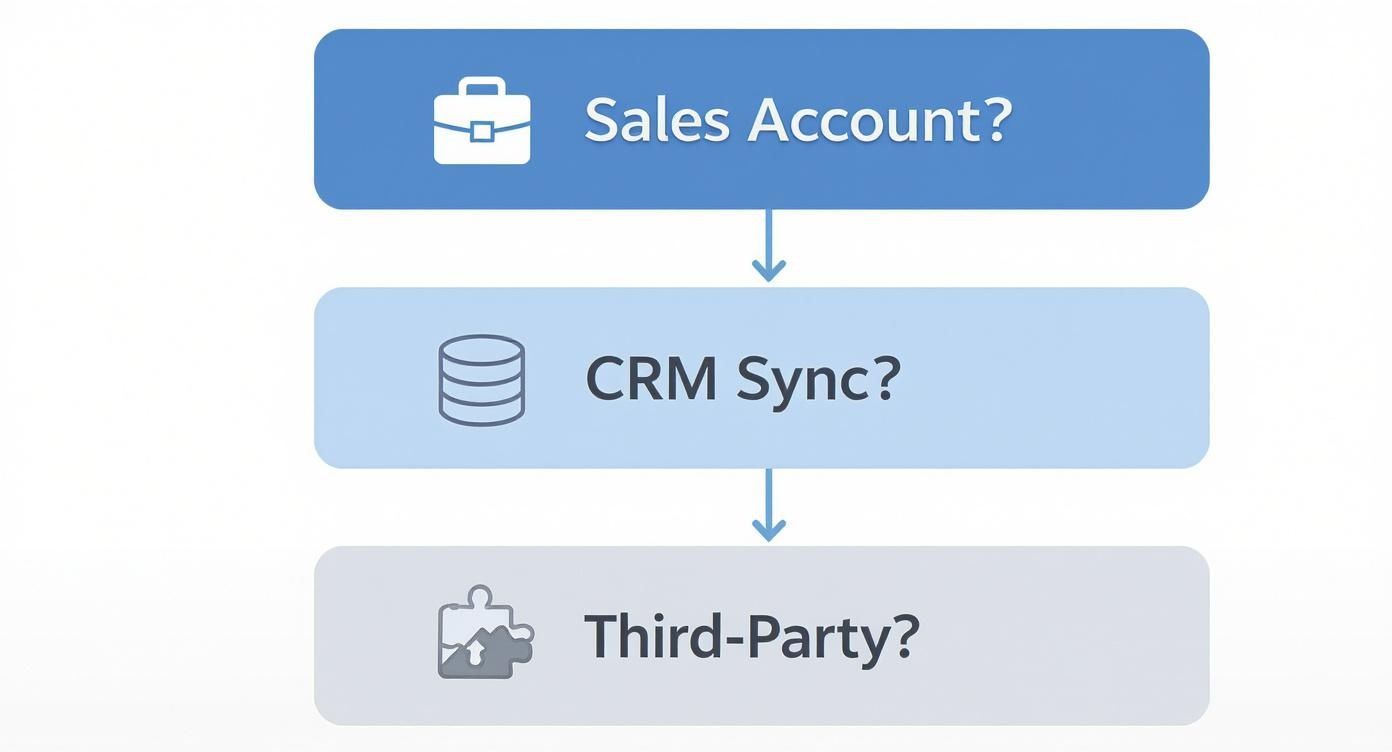
As you can see, the choice often boils down to balancing your need for enriched data against the platform you're using and your comfort level with automation.
Comparison of LinkedIn Data Export Methods
To make the choice clearer, let's break down the main differences between the three primary ways you can get your connection data out of LinkedIn. Each method has its own set of pros and cons, especially when you look at the type of data you get, the cost, and the potential risks involved.
| Feature | Standard LinkedIn Export | Sales Navigator Sync | Third-Party Tools |
|---|---|---|---|
| Data Included | Names, Companies, Titles, Connection Date | Names, Companies, Titles (for leads/accounts) | Names, Companies, Titles, Emails, Phone Numbers |
| Email Addresses | No (unless user opted-in, which is rare) | No | Yes (primary feature) |
| Cost | Free | Included with Sales Nav subscription | Varies (monthly subscription or per-credit cost) |
| Speed | Can take up to 48 hours | Real-time (for CRM sync) | Fast (minutes to a few hours) |
| Compliance Risk | None | None | Moderate (against LinkedIn's Terms of Service) |
| Best For | Basic backups, personal network analysis | Integrating lead lists directly into a CRM | Building comprehensive outreach and prospecting lists |
Ultimately, the standard export is great for a simple backup. Sales Navigator is built for integrating your sales workflow with a CRM. But if your goal is to build a detailed prospecting list for outreach campaigns, third-party tools are often the most direct route.
Navigating the Risks and Rewards
Let's be honest about the risks. Using automated tools to scrape information is technically against LinkedIn’s User Agreement. The platform has detection systems in place to spot and restrict accounts that show bot-like behavior, like viewing an unusually high number of profiles in a short time.
But the reality is that a huge part of the sales and recruiting world relies on these tools to be effective. The key is to be smart about it and mitigate the risk by choosing a reputable provider.
Here’s what to look for:
- Tools that mimic human behavior: Good services build in delays and randomized actions to avoid tripping LinkedIn's security alarms. They don't just blast through profiles at lightning speed.
- A focus on data quality and verification: The best tools don't just find an email; they verify it. This is crucial for keeping your bounce rates low and protecting your domain's reputation.
- Solid reviews and community feedback: See what other sales pros and recruiters are saying. A tool with a history of getting users' accounts suspended is a massive red flag.
Deciding to use a third-party tool is a calculated risk. You have to weigh the incredible time savings and data benefits against the potential—though often small, if you're careful—risk to your account. For many, it's a necessary trade-off to effectively scale their efforts on how to export connections from LinkedIn for business growth.
How to Actually Use Your Exported LinkedIn Data
Okay, so you’ve got the Connections.csv file. That’s the easy part. The raw data you just downloaded is a bit of a mess—it's potential, but it's not yet a powerful asset for your business.
The real magic happens when you clean it up, get it into your CRM, and use it to build real relationships, not just blast out sales pitches.
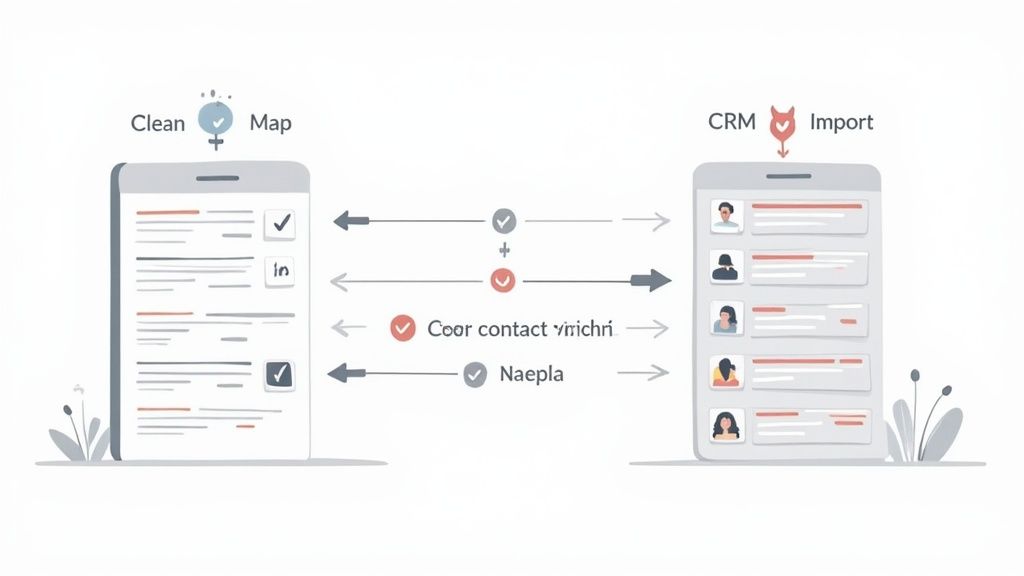
Your first stop is going to be a spreadsheet tool like Google Sheets or Microsoft Excel. This is where we’ll turn that chaotic list into a clean, organized database that your sales and marketing tools can actually understand.
Cleaning and Prepping Your CSV File
Open that file and you'll see the problem right away. Data inconsistency is the enemy of any good CRM. A classic example is job titles. You'll see "VP of Sales," "Vice President, Sales," and "Sales VP"—all the same role, but your CRM will treat them as three completely different titles.
To get started, focus your cleanup on a few key tasks:
- Standardize Job Titles: Use the "Find and Replace" function to make titles consistent. For example, find all instances of "VP," "Vice President," and "V.P." and replace them with a single format like "VP."
- Trim the Fat: Not every connection is a lead. Be ruthless. Filter out and delete former colleagues, family members, or anyone who doesn't fit your ideal customer profile.
- Split Names: Many CRMs need separate first and last names. If your export lumps them together, use your spreadsheet’s "Split text to columns" feature to break them apart.
This isn't just busy work. This initial cleanup is your first line of defense against "dirty data" polluting your CRM, which saves you from massive headaches later on.
Mapping LinkedIn Fields to Your CRM
With a nice, clean file ready to go, the next step is getting it into your CRM. This involves something called field mapping. It’s pretty straightforward—you’re just telling your CRM which column from your spreadsheet matches which field in a contact record.
Most CRMs, whether you're using HubSpot or Salesforce, have a simple import wizard. You'll upload your CSV, and it will ask you to match the columns.
The key to a successful import is a clean spreadsheet. A few minutes spent standardizing data beforehand can save hours of frustration trying to fix mismatched records inside your CRM later.
For example, you’ll map things like:
Companyin your CSV to theCompany Namefield in your CRM.Positionin your CSV to theJob Titlefield.Connected Onin your CSV to a custom field you can create calledLinkedIn Connection Date.
That last one is a bit of a pro tip. Tracking the connection date gives you fantastic context. It lets you segment contacts based on how long they’ve been in your network, which is incredibly useful for tailored outreach.
Ethical Outreach and Building Relationships
Now for the most important part: what you do with this data. Let’s be clear: an exported list of connections is not a license to spam. Blasting your entire network with a generic, copy-paste sales pitch is the fastest way to burn every bridge you've ever built.
Instead, think of this list as a directory for starting personalized, one-to-one conversations. A strategic, targeted approach is what separates successful campaigns from spam folders. This is a core idea we dive deep into in our guide to agency lead generation on LinkedIn.
Your outreach should always be segmented and relevant. For instance, you could create a small, curated list of connections who work in the SaaS industry. Then, send them a case study that speaks directly to the challenges SaaS companies face.
The goal is to start a conversation, not just shove a product in their face. When you treat your exported list with respect, you transform a simple data file into a powerful tool for building genuine business relationships.
Common Questions About Exporting LinkedIn Data
Even with a clear process, a few nagging questions always seem to pop up when you're ready to export your LinkedIn connections. Most of the time, they circle around privacy, what data you actually get, and whether it’s safe to bring in outside help.
Let's clear up the most common concerns we hear so you can move forward with confidence.
Will My Connections Know I Exported My Data?
Absolutely not. Your connections will never be notified when you export your data.
The entire process is completely private. Think of it as downloading your own files from a cloud drive—it’s a personal action between you and the platform. LinkedIn treats this as a standard user feature for data backup and portability, and it’s for your eyes only.
Why Are Email Addresses Missing From the Export?
This is easily the biggest frustration with LinkedIn’s native export feature, and it’s a question we get all the time.
A few years back, LinkedIn stopped including email addresses in the standard data export to tighten up user privacy. So even if a connection lists their email publicly on their profile, LinkedIn’s own tool will deliberately leave it out of the bulk Connections.csv file you download.
Your exported
Connections.csvfile will contain names, companies, job titles, and connection dates. Critically, it will not include email addresses. This is an intentional privacy measure from LinkedIn.
This is why so many sales and marketing pros turn to third-party data enrichment tools—they fill that specific gap. Of course, once you have that data, you need to know what to do with it. Measuring your outreach effectiveness is key, a topic we break down in our guide on LinkedIn attribution and ROI.
Are Third-Party Export Tools Safe to Use?
Here’s the honest answer: using third-party tools to scrape data technically violates LinkedIn's User Agreement. This comes with a potential risk of getting your account restricted.
That said, countless sales and recruiting professionals rely on them every day for efficiency. If you decide to go this route, it's crucial to choose a reputable provider. Look for tools that are known for mimicking human behavior to fly under the radar, rather than just blasting the platform with requests.
Always weigh the time you’ll save against the potential risk to your account. Your best bet is to find tools with strong community feedback that clearly prioritize safety over raw speed.
Ready to turn your LinkedIn presence into a predictable pipeline without the manual grind? GetViews.AI uses AI to create high-performing content in your voice, spark conversations with the right buyers, and drive inbound leads automatically. Stop chasing connections and start building your revenue machine at https://getviews.ai.