How to Tag Someone in a LinkedIn Post
Learn how to tag someone in a LinkedIn post to boost visibility and engagement. A practical guide with tips for desktop and mobile.
Wilmer KarlssonTarstad
Tagging someone on LinkedIn is way more than just a feature—it’s a core networking move. At its simplest, you just type the @ symbol, start typing a name, and pick the right person or company from the list that pops up.
But that simple action? It's what turns a monologue into a conversation.
The Real Impact of Tagging on LinkedIn
Knowing how to tag someone is easy. Knowing why and when is what separates the pros from the noise. When you tag a colleague, a client, or an industry influencer, you're not just name-dropping. You're pulling them into the conversation and, by extension, opening the door to their entire network.
Think about it: the person you tag gets a notification. If they like or comment, your post suddenly appears in the feeds of people who have never heard of you. It's a powerful ripple effect that blows the doors off your organic reach.
Building Connections Through Acknowledgment
A smart tag is public recognition, and people remember that. It’s a simple way to build goodwill and strengthen professional ties.
For example, you can use it to:
- Give credit where it's due for a team member's killer work on a project.
- Thank a mentor whose advice directly led to a recent win.
- Shine a spotlight on a client's success story, making them the hero (and reinforcing your value).
This isn't just a mention; it's a digital high-five. It shows you're a team player who values collaboration, and it makes people want to work with you.
Behind every screen is a network of professionals ready to engage with content that matters. Your tags are the bridge.
A Powerful Tool for a Professional Audience
Let's be real, LinkedIn is where business gets done online. With millennials making up 60% of users and a massive concentration of professionals aged 25-54, this isn't the place for cat videos. It's a network built on reciprocity and professional acknowledgment.
Tagging taps directly into that culture. It’s a strategic way to get your content in front of the right eyeballs and start meaningful conversations. More importantly, it helps you track the real-world impact of your efforts, which is crucial for understanding your LinkedIn attribution and ROI.
By turning a simple mention into a strategic networking opportunity, you transform your LinkedIn activity from passive posting to active relationship-building. Every tag becomes a potential conversation starter.
How to Actually Tag Someone on LinkedIn
Tagging people on LinkedIn is one of those simple moves that punches way above its weight. It's a direct line to getting more eyes on your content and sparking real conversations. Best part? It works the exact same way whether you're at your desk or on your phone.
So, how do you do it?
When you’re writing a post, just hit the @ key. As you start typing a name, a little drop-down menu pops up with suggestions. You’ve seen it a thousand times.
This infographic lays out the whole three-second process.
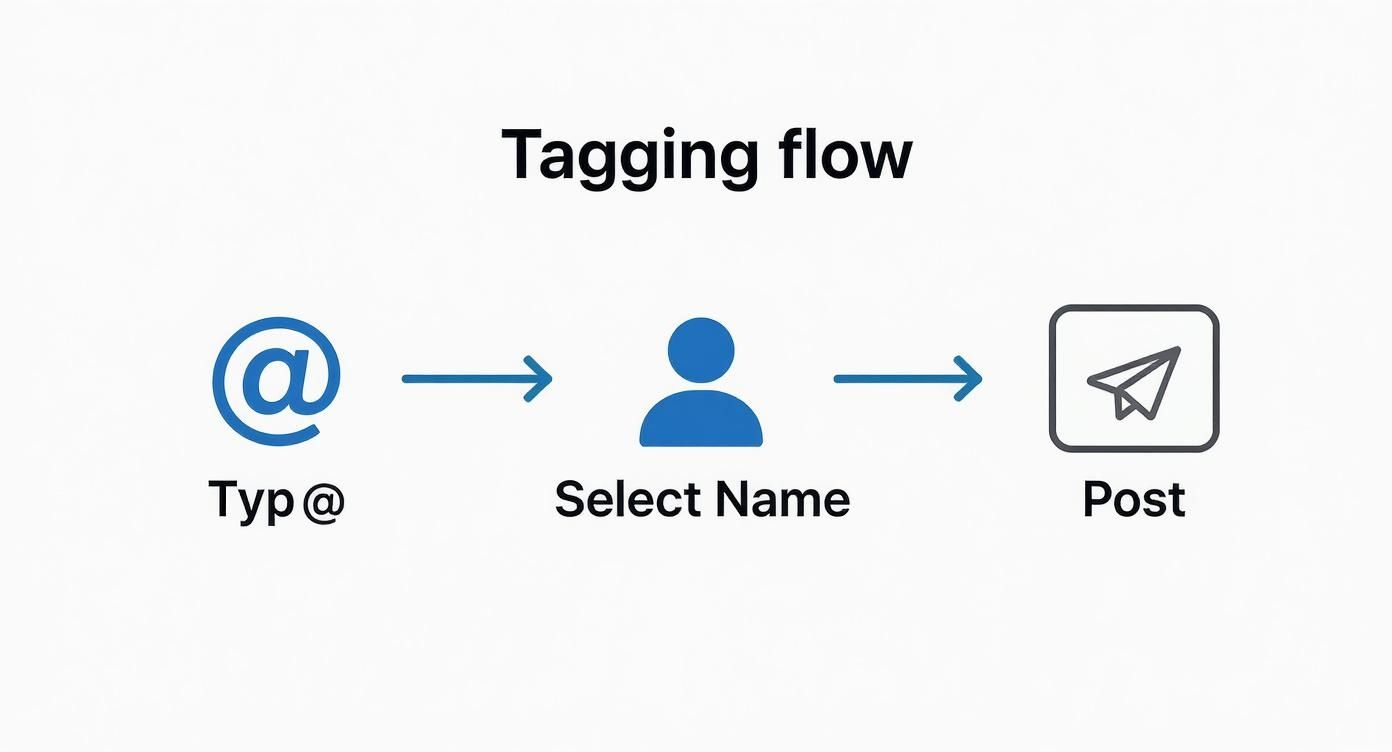
The trick is just making sure you click the right person or company from that list. Once you do, their name becomes a clickable blue link. That's how you know it worked.
Tagging on Desktop vs. Mobile
Honestly, there’s barely a difference. The interface looks a little different, but the core mechanic—using the @ symbol—is identical.
- On Desktop: You'll do this when drafting posts, writing articles, or dropping a comment. Super straightforward.
- On Mobile: The app has the same power. Perfect for tagging a colleague in a discussion while you’re waiting for coffee.
When you select the right profile, you'll see their name turn bold and blue in the editor. If it stays plain black text, something’s off. Double-check the spelling or try their full name—sometimes LinkedIn's search is a bit picky.
A tag isn't just a name-drop. It sends a direct notification to that person or company page, pulling them right into the conversation. This is your best shot at getting them to actually see and engage with what you posted.
Where You Can Use Tags (Posts and Comments)
This isn't just for brand new posts you're writing. You can use the same @-mention trick in the comments of any post.
This is a killer tactic for looping an expert into a debate or giving a shout-out to someone who would add a ton of value to the thread.
Learning how to tag someone properly is a fundamental LinkedIn skill, right up there with having a decent headshot. It's a small action you can weave into your larger content plan, especially when you're looking to get more mileage out of your work. We talk a lot more about that in our guide to content repurposing for LinkedIn.
Tagging That Actually Builds Relationships
Just because you can tag someone doesn't mean you should.
Let’s be honest, a tag without a real purpose is just digital noise. And on a professional platform like LinkedIn, noise gets tuned out fast. The real magic of a tag isn't the notification it sends; it's the relationship it acknowledges and, hopefully, strengthens.
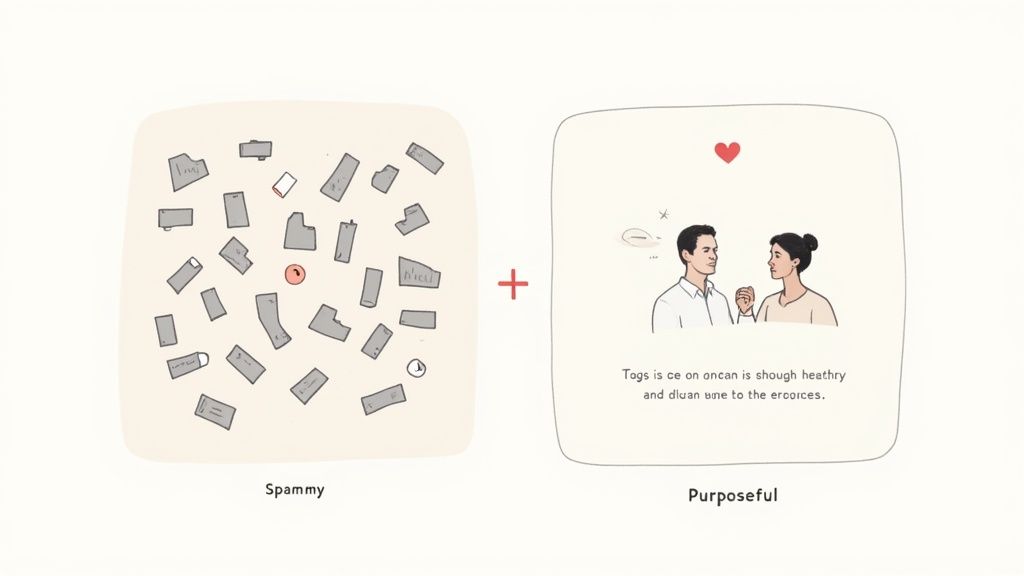
Before you hit that "@" key, ask yourself one simple question: Is this person directly and genuinely connected to the content of this post?
If the answer is shaky, you're probably spamming, not networking. Tagging a laundry list of influencers on a generic post, hoping for a signal boost, is a rookie mistake. It can backfire, making you look desperate and damaging your credibility.
Make Every Tag Count
The unwritten rule of LinkedIn is simple: quality over quantity. A single, highly relevant tag is infinitely more powerful than a dozen random ones. When you keep your tags focused, you show respect for everyone's time—both the person you're tagging and the audience reading your post.
When you're thinking about how to tag someone in a LinkedIn post, being thoughtful is key. A well-placed mention can absolutely boost engagement and forge real professional connections. But to avoid coming off as spammy, only tag people who are genuinely relevant and briefly explain why you're including them.
Keeping the tag count low—typically between one and three—ensures your post stays focused and doesn't overwhelm your readers. This strategic approach is what turns a simple mention into a meaningful interaction. For a deeper dive into this, the team at Authoredup.com has a great piece on the etiquette of professional tagging.
The Power of Adding Context
This is the most overlooked—and most crucial—step. You have to explain why you're tagging someone, right there in the post. Never just drop a name and hope they figure it out. Weave their name into the narrative.
A tag without context is just a notification. A tag with context is a conversation starter. It tells the person you tagged, "I value your input," not just, "I want your eyeballs."
Look at the night-and-day difference between these two approaches:
Ineffective Tagging (No Context): "Great article on the future of sales. What do you think? @JaneDoe @JohnSmith @EmilyJones"
This feels lazy. It puts all the work on them to figure out why they were pulled into the conversation.
Effective Tagging (With Context): "This article's point on AI in sales funnels is fascinating. It builds on the exact framework that @JaneDoe shared in her recent keynote. Jane, I'd love to hear your take on how this applies to enterprise clients."
See the difference? This version is specific, respectful, and gives a crystal-clear reason for the tag. It makes Jane far more likely to jump in with a thoughtful response. By adding that one sentence of context, you transform a generic shout-out into a personal invitation. It's a small detail that changes everything.
Solving Common LinkedIn Tagging Problems
You’ve been there. You type the "@" symbol, start typing a name, and… crickets. Nothing shows up. It’s one of those small, incredibly frustrating LinkedIn hiccups that can completely derail your flow.
But don't give up and hit delete just yet. More often than not, it’s not some random bug. The fix is usually pretty simple once you know what’s actually going on behind the scenes.
Most of the time, the problem boils down to either your connection to that person or their specific privacy settings. LinkedIn’s tagging system heavily favors your 1st-degree connections. While you can definitely tag people further out in your network, it gets trickier if their name is common or if they've locked down their profile.
The Person I Want to Tag Isn’t Showing Up
So, what do you do when your intended tag just won't appear in that dropdown list? Before you throw your keyboard out the window, run through this quick mental checklist. It covers the most common culprits I've seen.
- Are you actually connected? The single easiest way to make someone taggable is to be a 1st-degree connection. If they're a key person for your post, sending a connection request is your best bet.
- Is their profile name what you think it is? People often use middle initials, maiden names, or even nicknames on LinkedIn. A quick visit to their profile will confirm you're typing their name exactly as it appears.
- Have they blocked mentions? Some users simply change their privacy settings to control who can mention them. If they’ve flipped that switch, there’s nothing you can do—you won't be able to tag them.
Every once in a while, the issue is just a temporary glitch. If you've got a million tabs open or a spotty connection, a simple page refresh can work wonders.
Pro Tip: If a name in your post doesn't turn into a clickable blue link after you select it, the tag didn't register. Always look for that visual confirmation before you publish. A plain-text name is a dead giveaway that your mention failed.
Another classic mistake is when the tag looks right but isn't clickable. This almost always means you either have a typo or accidentally selected the wrong person from the suggestions. The best move is to just delete the name, re-type the @ symbol, and very carefully choose the correct profile from the list that pops up. An extra two seconds here can be the difference between a successful outreach and a post that goes nowhere.
To make things even easier, I've put together a quick troubleshooting guide for the most common tagging headaches.
Common Tagging Problems and Solutions
Sometimes you just need a quick reference to figure out what's gone wrong. This table breaks down the most frequent issues and how to get them sorted out fast.
| Problem | Potential Cause | How to Fix It |
|---|---|---|
| Name doesn't appear in the dropdown list. | Not a 1st-degree connection; incorrect spelling; user has blocked mentions. | Send a connection request, double-check the exact spelling on their profile, or accept you can't tag them. |
| Tag appears as black text, not a blue link. | You typed the name but didn't select it from the dropdown menu, or the tag failed to register. | Delete the name, re-type "@" followed by the name, and carefully click the correct profile from the list. |
| Wrong person gets tagged. | A common name led to selecting the wrong profile from the list. | Edit the post, delete the incorrect tag, and re-tag the correct individual, paying close attention to their profile picture and headline. |
| Tag works on desktop but not on mobile. | Often a caching issue or a bug in the mobile app. | Try closing and reopening the app. If that fails, clear the app's cache or try tagging from a mobile browser instead. |
Think of this as your go-to checklist before you hit publish. Running through these simple fixes will save you from the dreaded "silent mention" and ensure your post gets in front of the right people every time.
Using Tags for B2B Networking and Outreach
Think of a LinkedIn tag as more than just a notification. It's a strategic handshake. When you use it right, a simple post transforms into a powerful B2B networking tool, letting you build bridges without ever sending a cold DM.
This isn't about spam-tagging a bunch of influencers hoping for a cheap visibility boost. It’s about creating genuine, context-rich interactions that lay the groundwork for real business relationships. Let's move past basic mentions and start using tags to spark meaningful professional conversations.
Acknowledging Collaborators and Partners
One of the easiest wins with tagging is giving public credit where it's due. Just wrapped up a successful project? A post celebrating that outcome is the perfect chance to tag key collaborators, partners, or even the champions on the client's side.
This simple act does two things at once: it shows genuine appreciation and publicly reinforces your professional network. You highlight your collaborative spirit, make your partners look great, and strengthen the bond between your companies.
- Example Post Idea: "Absolutely thrilled to share the results of our Q2 project with @[CompanyName]! A huge shout-out to @[Collaborator Name] for their incredible insights on market trends—we couldn't have done it without them. This collaboration is a testament to what great teamwork can achieve."
Celebrating a Client’s Success
Here’s a pro tip: your clients’ wins are your wins. When you see a client you’ve worked with hit a major milestone—securing a new round of funding, launching a product, or winning an industry award—celebrate it. Tagging them in a congratulatory post is a powerful, yet subtle, form of relationship marketing.
It proves you're invested in their success long after the invoice is paid. This is how you build loyalty and turn clients into genuine advocates for your brand. It also serves as powerful social proof, showing potential new clients the caliber of companies you work with.
A tag celebrating a client’s success is a warm touchpoint. It keeps your relationship active and positions you as a supportive partner, not just another vendor.
Remember, LinkedIn's algorithm is smart. It prioritizes relevance, so tossing in irrelevant tags will actually hurt your post's reach. This is especially true in B2B marketing, where 81% of campaigns are already fighting for attention. A thoughtful, relevant tag makes your outreach feel valuable, not spammy. For a deeper dive, check out Hootsuite's breakdown of the LinkedIn algorithm.
Referencing Influencers to Start Conversations
Tagging an industry leader or influencer can be a great way to get on their radar, but you have to play it smart. Don't just tag them in a generic post asking for their opinion. That's lazy and it rarely works.
Instead, build on their work.
Reference a specific point from their latest article, podcast, or keynote. Explain how that single insight shaped your own thinking or a recent strategy you implemented. This approach proves you've done your homework and genuinely value their contribution, making a positive response far more likely. This kind of warm outreach is a core piece of any successful agency lead generation strategy on LinkedIn.
Common Questions About Tagging on LinkedIn
Even once you get the hang of it, a few specific questions always seem to pop up. Let's tackle the common ones I hear all the time so you can tag with confidence.
Is There a Limit on How Many People You Can Tag?
Technically, LinkedIn doesn't publish a hard cap. But from experience, going overboard is one of the fastest ways to get your post flagged as spammy by the algorithm.
Tagging more than 10 people is a red flag. It looks desperate and often hurts your post's reach instead of helping it. The goal isn't to create a wall of names; it's to start a meaningful conversation.
I tell my clients to stick to a maximum of 1-5 highly relevant tags per post. This makes each mention feel personal and deliberate, which makes the person you tagged far more likely to actually respond.
Help! I Forgot to Tag Someone. Can I Add Them After I Post?
Yep, you absolutely can. We've all been there.
Just find your post, click the three little dots (...) in the top-right corner, and hit "Edit post." You can then add or remove tags just like you did when you first wrote it. Just make sure you hit "Save" when you're done.
Do People Actually Get a Notification When You Tag Them?
They sure do. By default, LinkedIn sends a notification to anyone you mention in a post or comment. This is the entire point—it’s a direct tap on the shoulder to get their attention and pull them into the conversation.
Of course, users can turn these notifications off in their settings. But most savvy professionals leave them on so they don't miss out on important discussions.
Can You Tag People You're Not Connected With?
Yes, and this is a great way to expand your network. You can tag anyone with a public profile, even if they're a 2nd or 3rd-degree connection.
Keep in mind, LinkedIn’s search tool will always show your 1st-degree connections first. To find someone outside your network, you might need to type their full, exact name for them to pop up. It’s a fantastic tactic for respectfully getting on the radar of industry leaders or potential collaborators.
Ready to turn those strategic tags into a predictable pipeline? GetViews.AI helps you automate your LinkedIn content and follow-up, turning engagement from your posts into qualified leads without the guesswork. Start building your inbound machine at https://getviews.ai.